Generate HDL and HLS Code from a Contrast Adjustment Algorithm
R2026bThis example shows how to generate HDL and HLS code from a MATLAB® function that adjusts image contrast by linearly scaling pixel values between upper and lower limits.
In image processing systems, contrast adjustment improves the visibility of features by remapping pixel intensities to fill the available dynamic range. The algorithm builds a histogram of the input frame and determines lower and upper population limits while ignoring outlier pixels. It then applies a gain and offset to scale the remaining pixel values to the desired output range. A temporal damping factor smooths the gain between frames to prevent flickering.
Examine the MATLAB Design and Test Bench
Set up the MATLAB function and test bench for this example. In the MATLAB Command Window, enter:
mlhdlc_demo_setup("mlhdlc_image_scale");MATLAB function
Test bench
<model>_runme.mscript, which includes the commands to generate HDL code<model>_runme_hls.mscript, which includes the commands to generate HLS code
The MATLAB function, mlhdlc_image_scale, processes one pixel per
call. It accepts pixel coordinates, a 14-bit pixel value, and parameters that control the
scaling behavior. The function outputs remapped pixel coordinates and a scaled 8-bit pixel
value.
To view the function, enter:
open mlhdlc_image_scale.m;The test bench file, mlhdlc_image_scale_tb, verifies the behavior of
the MATLAB function. It reads a grayscale test image, streams pixels through the design
over two frames, and displays the original and scaled images alongside their histograms.
To view the test bench,
enter:
open mlhdlc_image_scale_tb.m;Simulate the Design
To check for run-time errors, simulate the design by running the test bench. In the MATLAB Command Window, enter:
mlhdlc_image_scale_tb
frame: 1
frame: 2
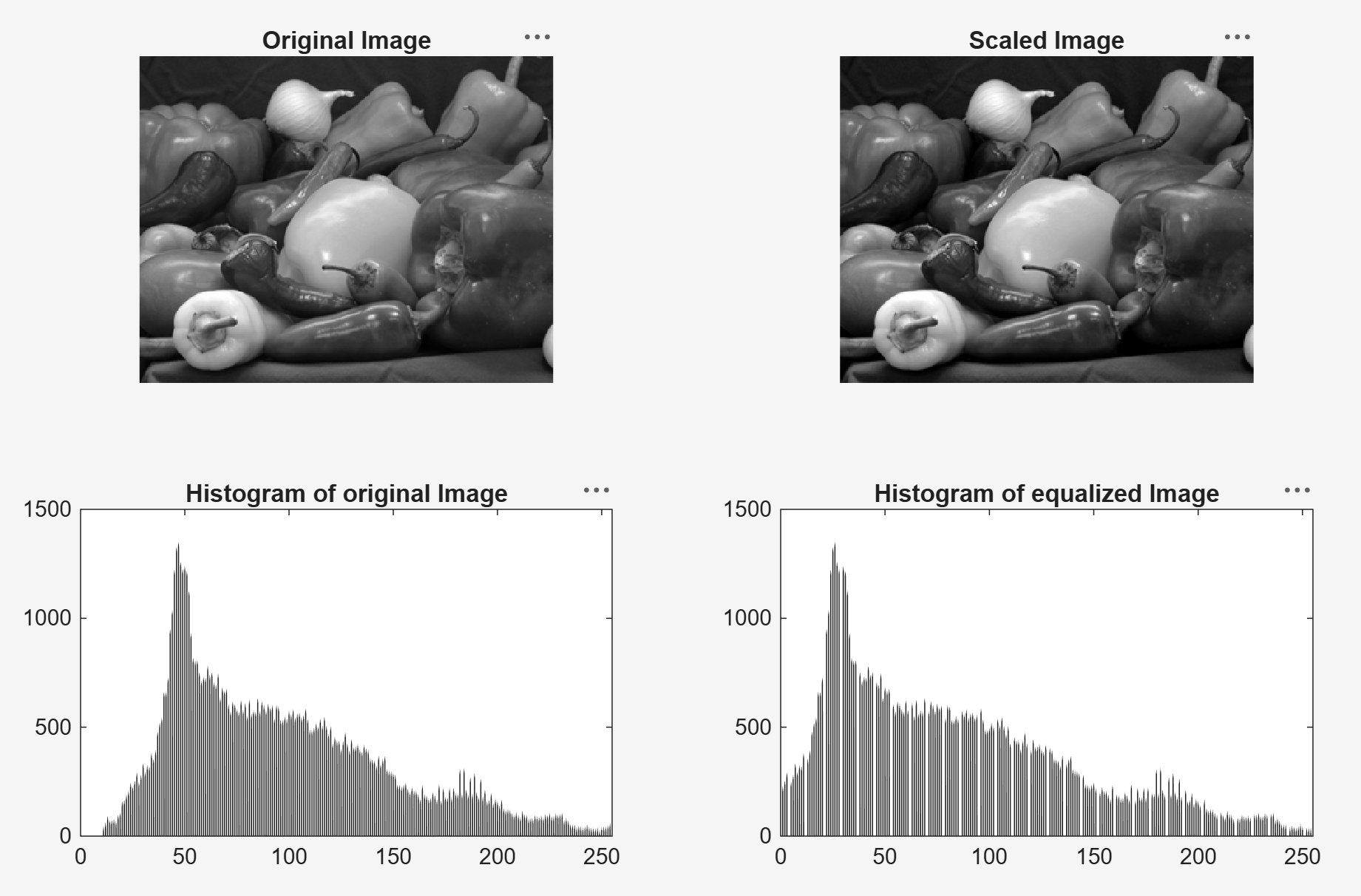
Generate HDL Code
The mlhdlc_image_scale_runme script specifies the target files,
enables the settings required for this example, and generates HDL code.
The script specifies the MATLAB function and test bench, then creates a fixed-point
configuration object and an HDL configuration object by using the
coder.config function. It associates the test bench with both
configuration
objects.
designName = "mlhdlc_image_scale";
designTB = "mlhdlc_image_scale_tb";
fixptCfg = coder.config("fixpt");
fixptCfg.TestBenchName = designTB;
cfg = coder.config("hdl");
cfg.TestBenchName = designTB;
The script generates code:
codegen("-float2fixed", "fixptCfg", "-config", "cfg", designName, ...
"-launchreport");
Run the Script
Modify the mlhdlc_image_scale_runme script. The script
disables synthesis by default. Set the
SynthesizeGeneratedCode property to
true:
cfg.SynthesizeGeneratedCode = true;
Update the settings for your synthesis tool:
cfg.SynthesisTool = "Xilinx Vivado";
cfg.SynthesisToolChipFamily = "Artix7";
cfg.SynthesisToolDeviceName = "xa7a100t";
cfg.SynthesisToolPackageName = "csg324";
cfg.SynthesisToolSpeedValue = "-1I";
Generate code by running the script:
mlhdlc_image_scale_runme
After code generation completes, the report opens. Examine the generated HDL code in the report.
Generate HLS Code
The mlhdlc_image_scale_runme_hls script specifies the target
files, enables the settings required for this example, and generates HLS code.
The script specifies the MATLAB function and test bench, then creates a fixed-point
configuration object and an HLS configuration object by using the
coder.config function. It associates the test bench with both
configuration
objects.
designName = "mlhdlc_image_scale";
designTB = "mlhdlc_image_scale_tb";
fixptCfg = coder.config("fixpt");
fixptCfg.TestBenchName = designTB;
The script creates an HLS configuration object by using the
coder.config function, associates the test bench, and enables
simulation.
cfg = coder.config("hls");
cfg.TestBenchName = designTB;
cfg.GenerateHLSTestBench = true;
cfg.SimulateGeneratedCode = true;
The script generates code:
codegen("-float2fixed", "fixptCfg", "-config", "cfg", designName, ...
"-launchreport");
Run the Script
Modify the mlhdlc_image_scale_runme_hls script. The script
disables synthesis by default. Set the
SynthesizeGeneratedCode property to
true:
cfg.SynthesizeGeneratedCode = true;
Depending on your synthesis tool, set one of these flags to
true:
isCodingForStratusHLS = false;
isCodingForVitisHLS = true;
Depending on your synthesis tool, update these settings:
if isCodingForStratusHLS
    cfg.SynthesisTool = "Cadence Stratus HLS";
elseif isCodingForVitisHLS
    cfg.SynthesisTool = "Xilinx Vitis HLS";
    cfg.SynthesisToolChipFamily = "Artix7";
    cfg.SynthesisToolDeviceName = "xa7a100t";
    cfg.SynthesisToolPackageName = "csg324";
    cfg.SynthesisToolSpeedValue = "-1I";
end
Generate code by running the script:
mlhdlc_image_scale_runme_hls
After code generation completes, the report opens. Examine the generated HLS code in the report.

