Calculate Global Statistics for Blocked Images
R2026bThis example shows how to calculate global statistics from a blocked image and then use the statistics to more accurately process blocks of the image.
The blockedImage object and apply function enable you to read and process individual blocks of an image. Block processing is necessary when working with images that are too large to load completely into memory. However, many image processing algorithms require global information about the image, which is not available when you are processing only one block of image data at a time.
This example demonstrates how to correct white balance using the White Patch Retinex algorithm. The White Patch Retinex algorithm estimates the scene illumination from the brightest pixels in the image. Block processing techniques are typically more useful for large images, but this example demonstrates the concepts using a small image that fits in memory.
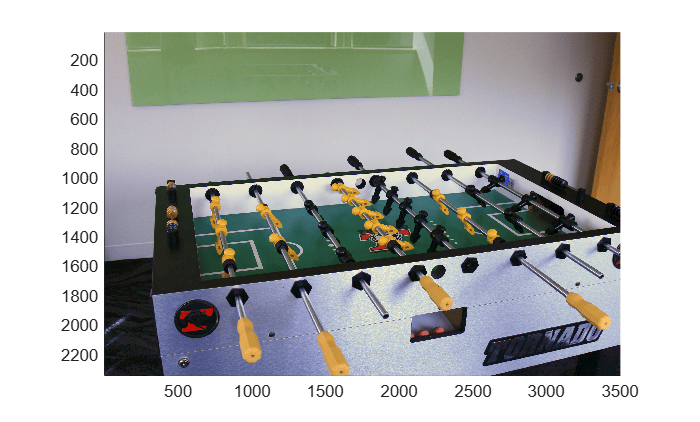
Open and display an image with poor white balance. The image has a blue tint.
bim = blockedImage("foosball.jpg",BlockSize=[400 400]);
bigimageshow(bim)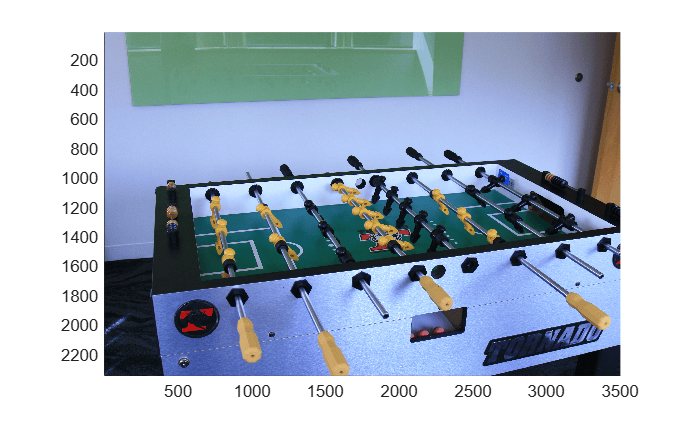
The JPEG file format saves images in the gamma-corrected sRGB color space. Linearize the image by using the rgb2lin function. This operation can be performed independently on blocks.
bimLin = apply(bim,@(block) rgb2lin(block.Data));
Correct White Balance Using Local Statistics
Define a helper function, named whiteBalanceBlock, that performs white balance correction on a block of data. The whiteBalanceBlock function first estimates the illuminant based on a histogram of pixel values by using the illumwhite function. The whiteBalanceBlock function then applies the white balance correction by using the chromadapt function and converts the data to the sRGB color space for display.
function imWB = whiteBalanceBlock(im)
    illum = illumwhite(im);
    imWB = chromadapt(im,illum,ColorSpace="linear-rgb");
    imWB = lin2rgb(imWB);
end
Apply the whiteBalanceBlock function to blocks of the linearized blocked image by using the apply function.
bimWBLocal = apply(bimLin,@(block) whiteBalanceBlock(block.Data));
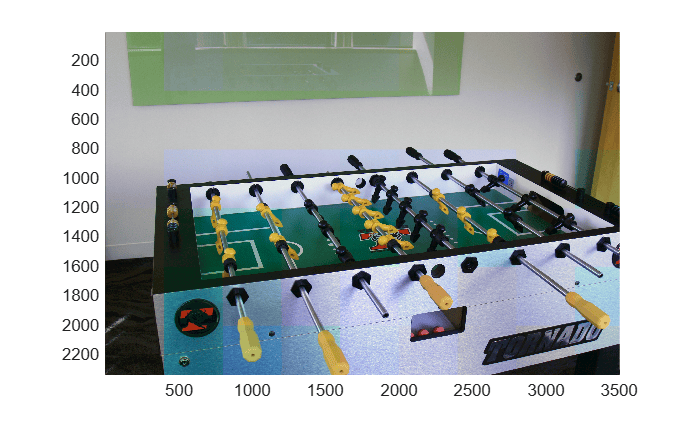
Display the white balanced image. You can see immediately that the results are incorrect. The problem is that each block was white balanced using a different estimated illuminant, rather than a single global illuminant for the entire scene.
bigimageshow(bimWBLocal)
Calculate Global Intensity Histogram
To estimate the illuminant of the entire scene, you can calculate the histogram of individual blocks, then add all of the histograms. Define a helper function, named calcBlockHist, that calculates the histograms of the red, green, and blue channels for a block by using the imhist function. The calcBlockHist function returns the histograms as fields in a structure, as required by the apply function for non-numeric and non-categorical output arguments.
function h = calcBlockHist(im)
    [countR,bins] = imhist(im(:,:,1));
    h = struct("countR",countR, ...
        "countG",imhist(im(:,:,2)), ...
        "countB",imhist(im(:,:,3)), ...
        "bins",bins);
end
Calculate the histograms for each block by using the apply function with the calcBlockHist function. The apply function returns a new blockedImage object whose source data is an in-memory array of structures. There is one element in the array for each block in the input blocked image.
bhist = apply(bimLin,@(block) calcBlockHist(block.Data));
bhist.Source{:}
ans = 6×9 struct array with fields:
countR
countG
countB
bins
Extract the source data into the workspace by using the gather function, then reformat the data into a vector of structures.
histRGB = gather(bhist);
histRGB = histRGB(:);
For each of the color channels, extract the histogram from all of the blocks by using the horzcat function and take the sum along the bins.
histR = sum(horzcat(histRGB.countR),2);
histG = sum(horzcat(histRGB.countG),2);
histB = sum(horzcat(histRGB.countB),2);
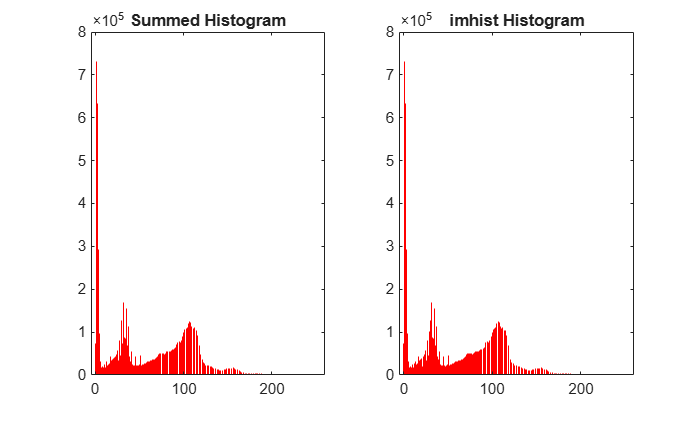
Because this example uses a small image that fits in memory, you can verify that the global histogram is summed correctly by comparing it to the output of the imhist function.
Call the imhist function on the original image, after linearization.
imLin = rgb2lin(imread("foosball.jpg"));
[histNormal,binsNormal] = imhist(imLin(:,:,1));
Compare the results. The histograms are numerically identical.
figure
subplot(1,2,1)
stem(histRGB(1).bins,histR,Color="r",Marker="none")
title("Summed Histogram")
subplot(1,2,2)
stem(binsNormal,histNormal,Color="r",Marker="none")
title("imhist Histogram")
Estimate the scene illumination from the top 5% brightest pixels. For each color channel, calculate the cumulative sum of the histogram in the reverse direction, and find the bin corresponding to the 95th percentile.
numPix = bim.Size(1)*bim.Size(2);
topPercentile = 5;

cumhistR = cumsum(histR,"reverse");
binR = find(cumhistR > (numPix*topPercentile/100),1,"last");
cumhistG = cumsum(histG,"reverse");
binG = find(cumhistG > (numPix*topPercentile/100),1,"last");
cumhistB = cumsum(histB,"reverse");
binB = find(cumhistB > (numPix*topPercentile/100),1,"last");
Store the estimated red, green, and blue values of the scene illuminant as a 3-element vector.
illum = [binR binG binB];
Scale the illuminant to the range [0, 1].
illum = (illum - 1) / (255)
illum = 1×3

    0.4980    0.6588    1.0000
Correct White Balance Using Global Statistics
Define a new helper function, named whiteBalanceGlobal, that performs white balance correction on a block of data using a specified illuminant.
function imWB = whiteBalanceGlobal(im,illum)
    imWB = chromadapt(im,illum,ColorSpace="linear-rgb");
    imWB = lin2rgb(imWB);
end
Apply the whiteBalanceGlobal function to the linearized blocked image by using the apply function.
bimWBGlobal = apply(bimLin,@(block) whiteBalanceGlobal(block.Data,illum));
Display the result. The image has good white balance and no block artifacts.
figure
bigimageshow(bimWBGlobal)