Generate HDL Code from MATLAB Code by Using Native Floating-Point and Vendor Floating-Point Library IP
R2026bThis example shows how to generate HDL code from MATLAB® code by using HDL Coder™ native floating-point (NFP) and vendor floating-point library IP. In this example, you use AMD® floating-point from the AMD® Vivado synthesis tool together with HDL Coder native floating-point in the same generated design.
You use the MATLAB HDL Workflow Advisor to configure the HDL code generation workflow, keep the original floating-point types, select the synthesis tool and target device, configure floating-point library settings, and generate an HDL test bench. You then use the command-line interface to customize native floating-point and vendor floating-point library settings and generate HDL code programmatically.
In this example, HDL Coder maps supported floating-point operations to AMD floating-point IP. For operations that the AMD floating-point library does not support, such as exponential and division operations, HDL Coder uses native floating-point IP when you enable aggressive dataflow conversion.
Set Up Tool Paths
Set up the paths to the third-party synthesis tool and HDL simulation tool. This example uses AMD® Vivado® as the synthesis tool and Siemens® ModelSim™ as the simulation tool.
Use the hdlsetuptoolpath function to specify the path to the installed AMD Vivado executable. Replace the tool path with the path to your Vivado installation.
hdlsetuptoolpath("ToolName","Xilinx Vivado","ToolPath", "C:\Xilinx\Vivado\2024.1\bin\vivado.bat");
Add the ModelSim executable folder to the system path for the current MATLAB session.
setenv("PATH", ["c:\Program Files\ModelSim\questasim-2023.2\win64\vsim.exe;", getenv('PATH')]);
Generate HDL Code Using MATLAB HDL Workflow Advisor
Use the MATLAB HDL Workflow Advisor to configure the HDL code generation workflow, define input types, select a target device, configure floating-point libraries, and generate an HDL test bench.
Create an HDL Coder Project
To create an HDL Coder project for the MATLAB design.
On the Apps tab, click HDL Coder.
In the Create HDL Coder Project dialog box, specify the project name and folder.
Click OK.
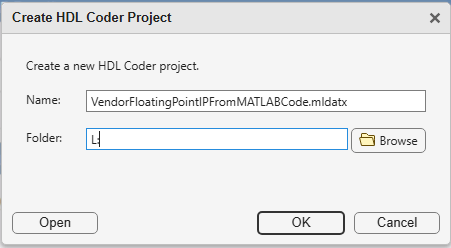
The HDL Workflow Advisor opens.
Configure the HDL Workflow
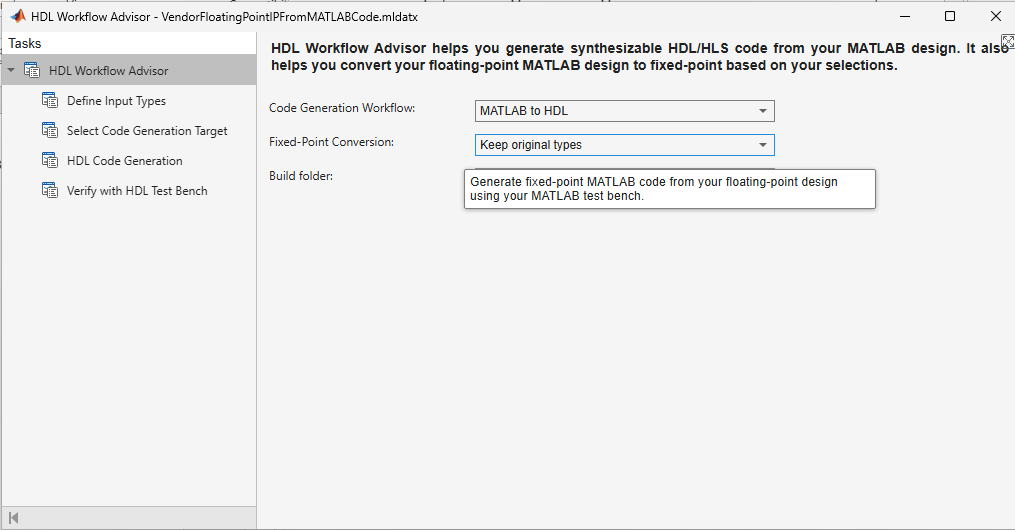
In the HDL Workflow Advisor task, configure the workflow for HDL code generation.
Set Code Generation Workflow to MATLAB to HDL.
Set Fixed-point conversion to Keep original types.
Click Run.
Use Keep original types because this example generates HDL code from floating-point MATLAB code by using floating-point libraries.
Define Input Types
In the Define Input Types task, specify the MATLAB design function and test bench.
Set MATLAB Function to
singleOps.m.Set MATLAB Test Bench to
singleOps_tb.m.Click Run.
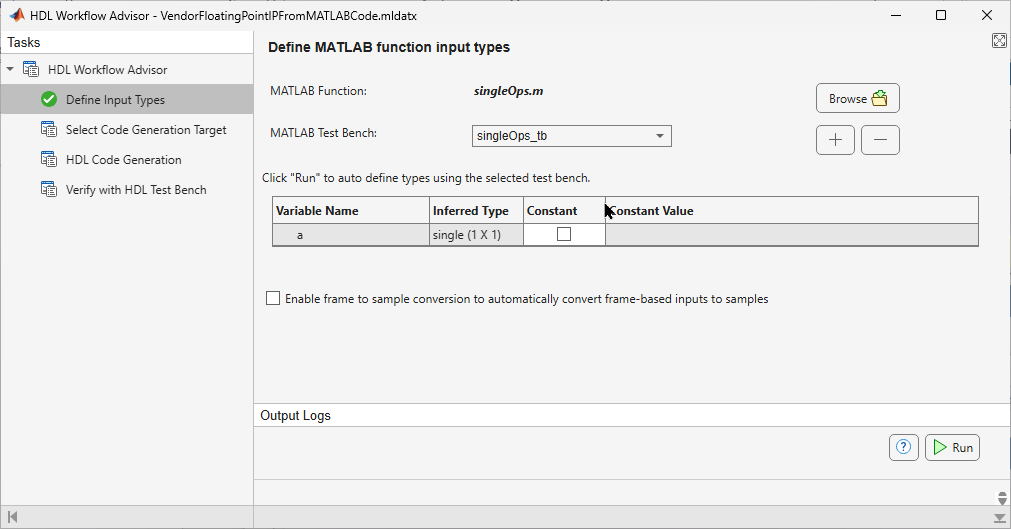
The HDL Workflow Advisor runs the test bench to infer input types for the MATLAB design.
Define Code Generation Target
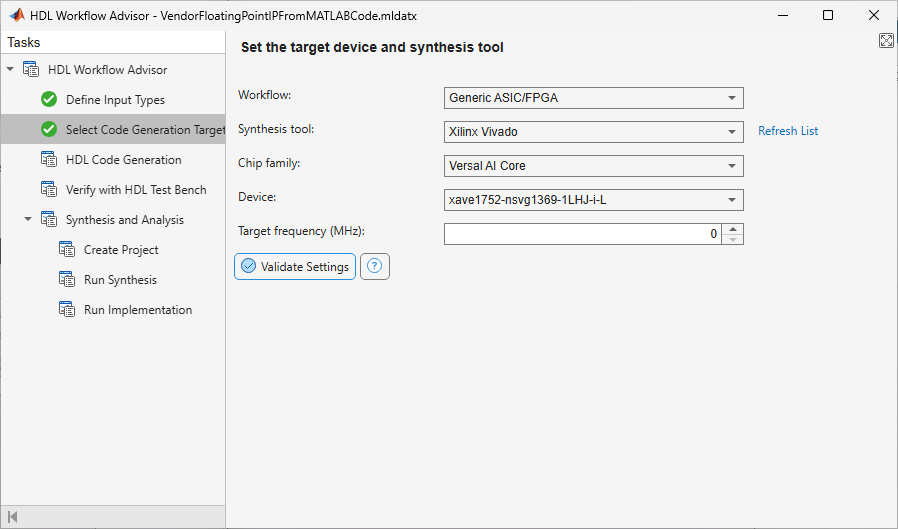
In the Select Code Generation Target task, configure the synthesis workflow and target FPGA device.
For this example, set these parameters:
Workflow —
Generic ASIC/FPGASynthesis tool —
Xilinx VivadoChip family —
Versal AI CoreDevice —
xcvc1802-viva1596-1LHP-i-L
If Xilinx Vivado does not appear in the Synthesis tool list, verify that Vivado is installed and that the tool path is set correctly. Then click Refresh list.
Configure Floating-Point Libraries
HDL Coder supports HDL code generation by using the AMD floating-point library, AMDFloatingPointOperators, or the Intel® FPGA floating-point IP library, AlteraFPFunctions, together with HDL Coder native floating-point. For other synthesis tool settings, you can use the native floating-point library.
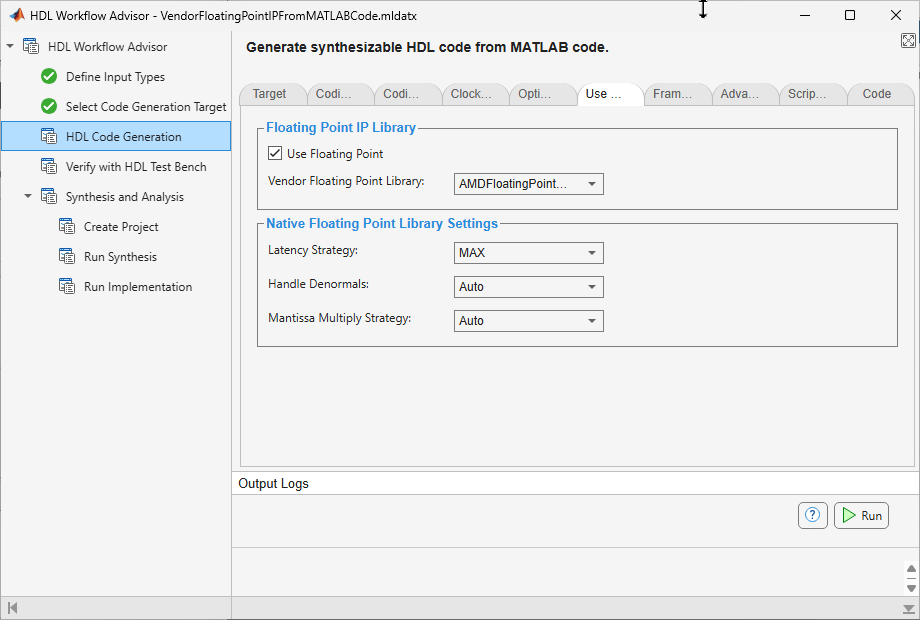
In the HDL Code Generation task, on the Use Floating Point tab:
Select Use Floating Point.
Set Vendor Floating Point Library to
AMDFloatingPointOperators.
If you customize native floating-point library settings, generate HDL code from the command-line interface.
Generate and Verify the HDL Test Bench
Use the Verify with HDL Test Bench task to generate and simulate the HDL test bench.
Open the Verify with HDL Test Bench task.
On the Test Bench Options tab, set Reset length (in clock cycles) to
10.Set Simulation library path to the path to your compiled Vivado simulation libraries for ModelSim.
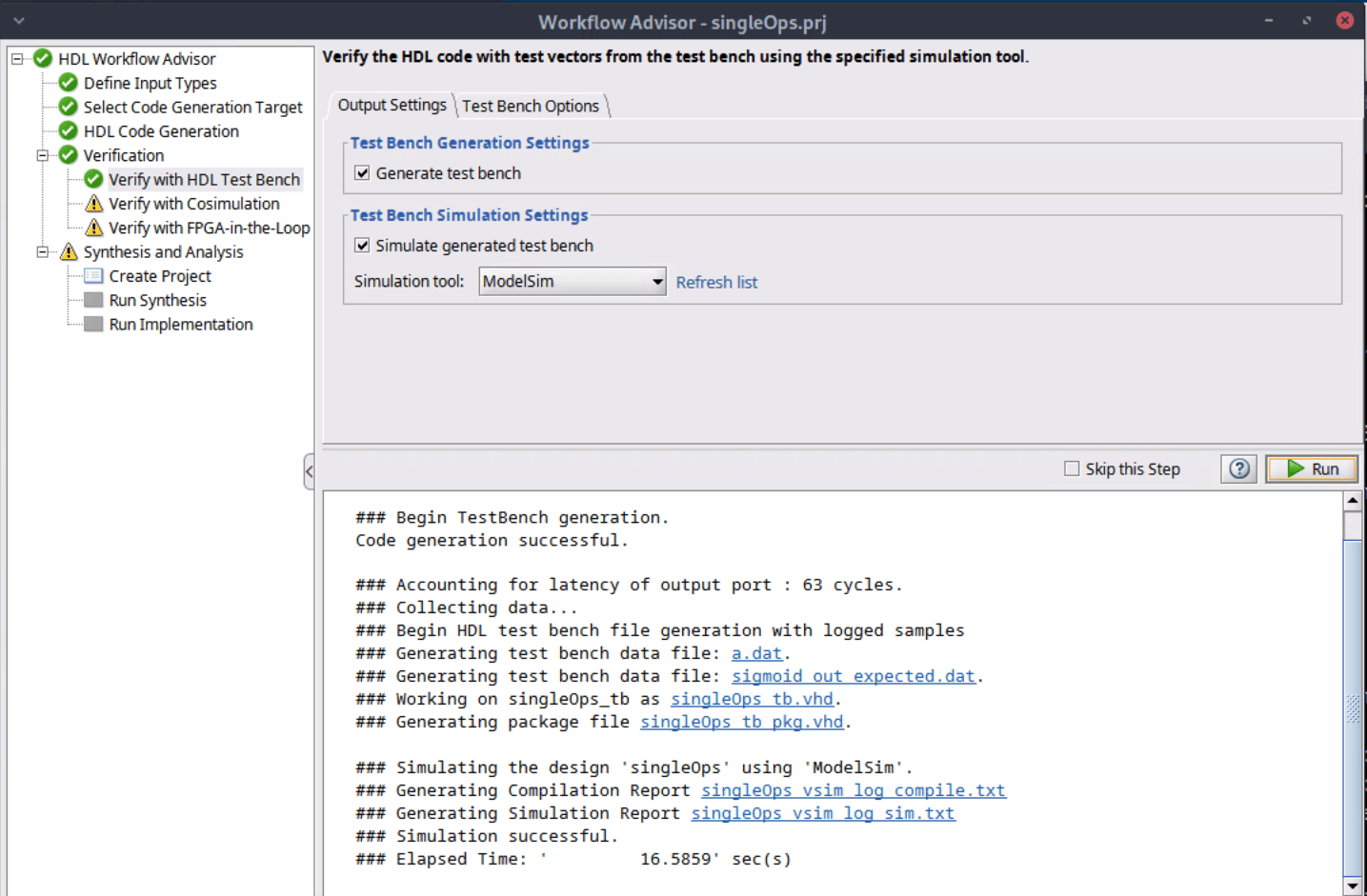
On the Output Settings tab, select Generate test bench.
To simulate the generated HDL test bench, select Simulate generated test bench.
Set Simulation tool to ModelSim.
Click Run.
HDL Coder does not support Vivado Simulator as the HDL simulation tool when you use the AMD floating-point library. Use ModelSim and specify the compiled Vivado simulation library path.
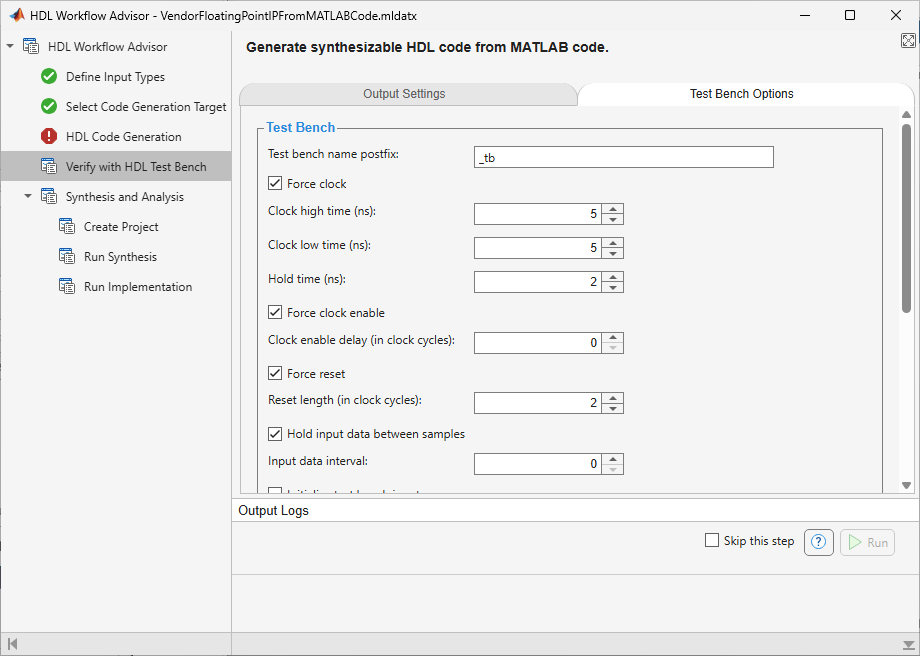
If the simulation passes, the HDL Workflow Advisor displays Simulation Successful. If ModelSim is not available in the Simulation tool list, verify that the ModelSim executable folder is on the system path for the MATLAB session, and then click Refresh list.
Generate HDL Code Using the Command-Line Interface
To generate HDL code from the command-line interface, create an HDL Coder configuration object, configure the object, run the code generation command, and then compile and simulate the model using ModelSim.
Create an HDL Coder Configuration Object
To generate HDL code, you need the MATLAB design file singleOps.m, and the test bench file, singleOps_tb.m.
Create an HDL Coder configuration object and set the DesignFunctionName and TestBenchName properties.
hdlcfg = coder.config("hdl");
hdlcfg.DesignFunctionName = "singleOps";
hdlcfg.TestBenchName = "singleOps_tb";
Configure the HDL Coder Configuration Object
Configure the synthesis tool and target device.
hdlcfg.SynthesisTool = "Xilinx Vivado";
hdlcfg.SynthesisToolChipFamily = "Versal AI Core";
hdlcfg.SynthesisToolDeviceName = "xcvc1802-viva1596-1LHP-i-L";
Configure the Simulation Library Path
Set the path to your compiled Vivado simulation libraries for ModelSim. By default, the compiled simulation library is located at 'C:\HDLTools\Vivado\ModelSim_SimLibs\2023.2\'. Update this path to the location of your compiled library.
hdlcfg.SimulationLibPath = "C:\HDLTools\Vivado\ModelSim_SimLibs\2023.2\";In the MATLAB design, the exponential and divide function are not supported by the AMD floating-point IP library. To use floating-point for these functions, enable AggressiveDataflowConversion to map the exponential and divide function to the HDL Coder native floating-point library.
hdlcfg.AggressiveDataflowConversion = true;
The AMD floating-point IP requires the reset signal be low for at least 10 cycles to reset the floating point IP. Set the ResetLength property to 10.
hdlcfg.ResetLength = 10;
Create a floating-point target configuration object for mixed native floating-point and AMD floating-point libraries by using the createFloatingPointTargetConfig function and setting the VendorFloatingPointLibrary name-value argument to AMDFloatingPointOperators. For more information on creating a floating-point target configuration object, see hdlcoder.createFloatingPointTargetConfig.
fpconfig = hdlcoder.createFloatingPointTargetConfig(VendorFloatingPointLibrary = 'AMDFLOATINGPOINTOPERATORS');
fpconfig.VendorLibrarySettings.DSPSliceUsage = 'Primitive';
fpconfig.VendorIPConfig.customize('Mul_Primitive', 'Single', 'Latency', 2);
fpconfig.LibrarySettings.LatencyStrategy = "Min";
hdlcfg.FloatingPointTargetConfiguration = fpconfig;
To generate a test bench that runs a ModelSim simulation, set the GenerateHDLTestBench property to true.
hdlcfg.GenerateHDLTestBench = true;
Run Code Generation
Use the codegen command to generate the HDL code and test bench. The exponential IP requires 16 cycles and the divide IP requires 17 cycles because the native floating-point library uses the minimum latency strategy. The addition IP uses the maximum latency value of 2 cycles.
codegen -config hdlcfg
### Begin MATLAB to HDL Code Generation...
### Working on DUT: singleOps.
### Using TestBench: singleOps_tb.
### Using D:\share\apps\HDLTools\Vivado\2024.1-mw-0\Win\Vivado\2024.1\bin\vivado for the selected floating point IP library.
### The DUT requires an initial pipeline setup latency. Each output port experiences these additional delays.
### Output port 1: 35 cycles.
### Generating AMD(R) floating point block: amdfp_add_single for latency of 2.
### Found an existing generated file in a previous session: (C:\ExampleManager83beb2\user.12112025\hdlcoder-ex28930989\codegen\singleOps\hdlsrc\Xilinx\Versal_AI_Core\xcvc1802-viva1596-1LHP-i-L\L2\amdfp_add_single\amdfp_add_single.vhd). Reusing the generated file.
### Done.
### Begin VHDL Code Generation
### Working on singleOps/amdfp_add_single_block as amdfp_add_single_block.vhd.
### Working on singleOps/nfp_div_single as nfp_div_single.vhd.
### Working on singleOps/nfp_exp_single as nfp_exp_single.vhd.
### Working on singleOps/nfp_uminus_single as nfp_uminus_single.vhd.
### Working on singleOps as singleOps.vhd.
### Generating package file singleOps_pkg.vhd.
### Generating Resource Utilization Report resource_report.html.
### Generating Optimization report
### To rerun codegen evaluate the following commands...

---------------------
cgi    = load('C:\ExampleManager83beb2\user.12112025\hdlcoder-ex28930989\codegen\singleOps\hdlsrc\codegen_info.mat');
inVals = cgi.CodeGenInfo.inVals;
cfg    = cgi.CodeGenInfo.codegenSettings;
codegen -config cfg -args inVals -report
---------------------


### Begin TestBench generation.
Code generation successful.

### Accounting for latency of output port : 35 cycles.
### Collecting data...
### Begin HDL test bench file generation with logged samples
### Generating test bench data file: a.dat.
### Generating test bench data file: sigmoid_out_expected.dat.
### Working on singleOps_tb as singleOps_tb.vhd.
### Generating package file singleOps_tb_pkg.vhd.
### Generating HDL Conformance Report singleOps_hdl_conformance_report.html.
### HDL Conformance check complete with 0 errors, 0 warnings, and 0 messages.
### Code generation successful: View report
Verify the Generated HDL Code by Using Generated ModelSim Simulation Scripts
The code generation process generates these ModelSim DO files to simulate your design in the Siemens® ModelSim® software. HDL Coder generates a simulation script for the ModelSim simulation tool when you use the vendor floating-point library. The code generation process generates these ModelSim DO files in the codegen/singleOps/hdlsrc folder.
singleOps_tb_compile.dofile compiles the generated HDL files and loads the entity to be tested (singleOps.vhd) and its test bench code (singleOps_tb.vhd).singleOps_tb_sim.doinitializes the simulator, sets up the wave window signal displays, and runs a simulation.
To verify the simulation results, open the ModelSim software and navigate to the codegen/singleOps/hdlsrc folder.
Use the generated compilation script to compile and load the design and test bench code.
QuestaSim>do HDL_DUT_tb_compile.do
2. Use the generated simulation script to execute the simulation.
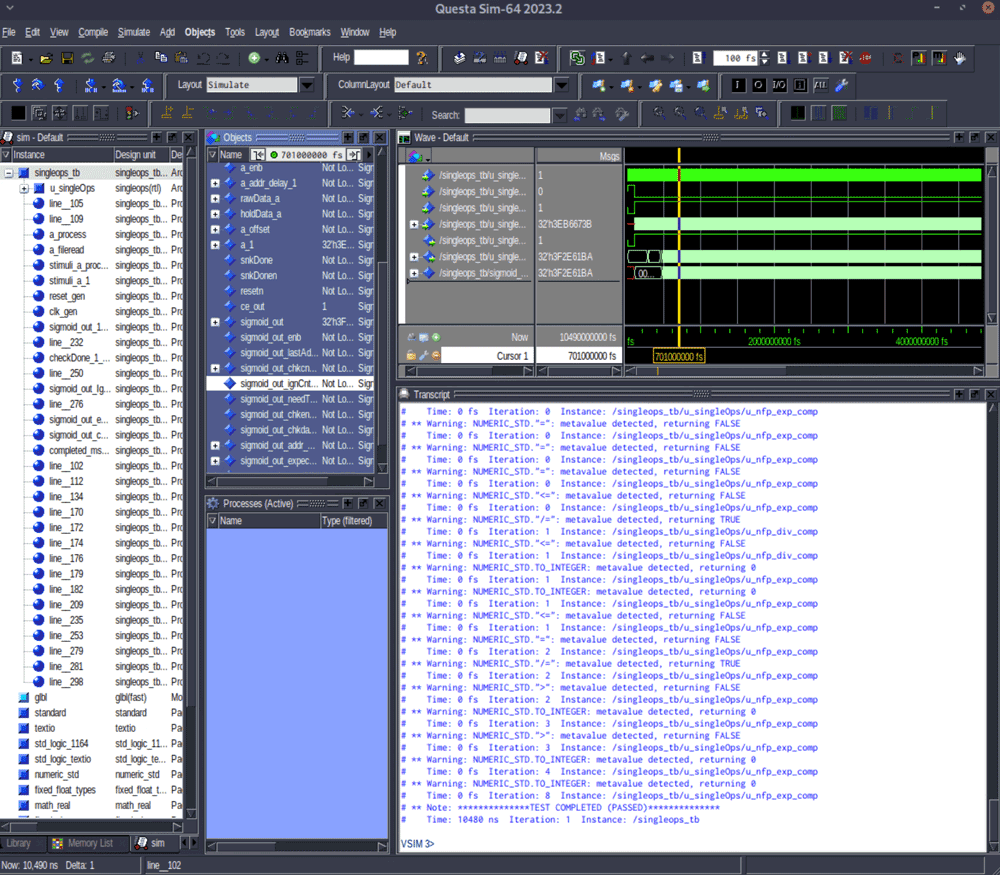
QuestaSim>do HDL_DUT_tb_sim.do
After the ModelSim simulation completes, the message at the end of the log window indicates that the test passes.
See Also
createFloatingPointTargetConfig

