OpenDRIVE Viewer Tool
R2026bVisualize ASAM OpenDRIVE data for import
Description
Use the OpenDRIVE Viewer Tool to visualize ASAM OpenDRIVE® data for import.
You can view ASAM OpenDRIVE data you bring into the tool in the scene, along with any other vector data. The tool runs validations both before import and after loading the imported data. This validation output prints to the Output pane. Most validation errors or warnings include hyperlinks in the message. Click a link to focus on the associated object or issue.
Open the OpenDRIVE Viewer Tool
On the RoadRunner toolbar, click the OpenDRIVE Viewer Tool button:

Examples
Click the OpenDRIVE Viewer Tool button.
Add the desired ASAM OpenDRIVE file to the Library Browser.
Click and drag the ASAM OpenDRIVE file from the Library Browser into the scene canvas.
From within the OpenDRIVE Viewer Tool, select lanes and other objects in the scene canvas to view their attributes in the Attributes pane.
From within the OpenDRIVE Viewer Tool (or any tool), select the View > Scene option from the menu bar, or press the F8 key.
From within any tool other than the OpenDRIVE Viewer Tool, select the View > Vector option from the menu bar, or press the F7 key.
Click the OpenDRIVE Viewer Tool button.
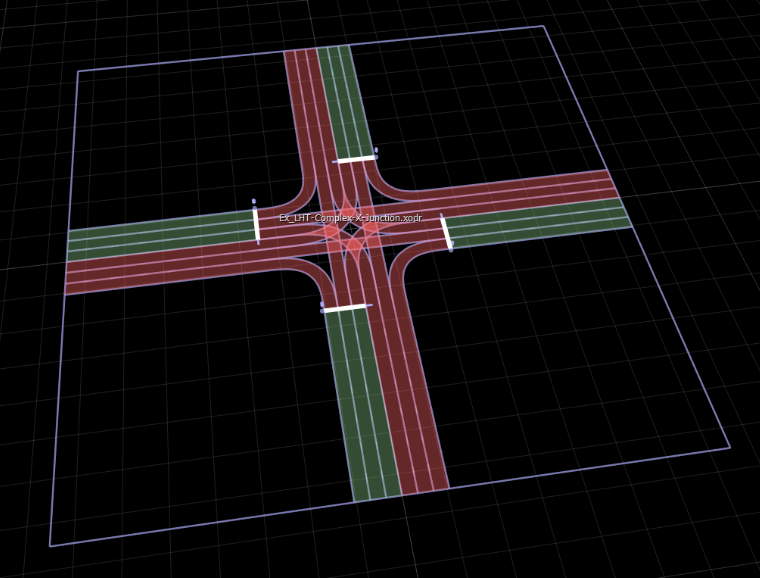
Select the bounding box of a visualized ASAM OpenDRIVE file. If your scene does not contain an ASAM OpenDRIVE visualization, follow the steps in the Load External ASAM OpenDRIVE File for Display example to add one to the scene. In this figure, the lavender rectangle represents the bounding box.
Click the Build Scene button.

Select your desired options and click Build. For more details on Build Scene options, see Importing ASAM OpenDRIVE Files.
From within the OpenDRIVE Viewer Tool, examine the validation report output in the Output pane. Most errors or warnings include a hyperlink. Click a link to focus on the associated object or issue.
Click the Search button on the toolbar to the left of the scene editing canvas.
Enter the desired search properties into the search dialog box.
Click the Find Next button on the search dialog box.
Parameters
| Attribute | Description |
|---|---|
| Asset | The ASAM OpenDRIVE file selected from the Library Browser. |
| Offset | An XYZ offset to apply to the coordinates of the scene. |
Version History
Introduced in R2020a

