rosRegisterMessages
R2026bDescription
rosRegisterMessages( registers ROS
custom messages with MATLAB®. Use this function to register the custom messages generated on another
computer running on the same platform and same version of MATLAB.genDir)
Note
The rosRegisterMessages function allows sharing of the custom
messages on different machines running on the same platform only. Use this rosgenmsg function on the new platform if the machines are running on
different platforms.
Examples
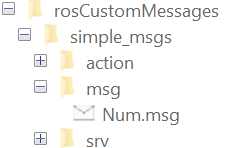
In this example, you create ROS custom messages in MATLAB® to share them on another machine. This other machine must run on the same platform and use the same version of MATLAB. You must have a ROS package that contains the required msg file, as this figure shows.
Open a new MATLAB session and create a custom message package folder in a local folder. Specify a short folder path when you generate custom messages on a Windows® machine to avoid limitations on the number of characters in the folder path. For example,
genDir = fullfile('C:/Work/rosCustomMessages')
genDir = fullfile(pwd,'rosCustomMessages');
packagePath = fullfile(genDir,'simple_msgs');
mkdir(packagePath)
Create a folder named msg inside the custom message package folder.
mkdir(packagePath,'msg')Create a file named .msg inside the msg folder.
messageDefinition = {'int64 num'};

fileID = fopen(fullfile(packagePath,'msg', ...
               'Num.msg'),'w');
fprintf(fileID,'%s\n',messageDefinition{:});
fclose(fileID);
Create a folder named srv inside the custom message package folder.
mkdir(packagePath,'srv')Create a file named .srv inside the srv folder.
serviceDefinition = {'int64 a'
                     'int64 b'
                     '---'
                     'int64 sum'};

fileID = fopen(fullfile(packagePath,'srv', ...
               'AddTwoInts.srv'),'w');
fprintf(fileID,'%s\n',serviceDefinition{:});
fclose(fileID);
Create a folder named action inside the custom message package folder.
mkdir(packagePath,'action')Create a file named .action inside the action folder.
actionDefinition = {'int64 goal'
                    '---'
                    'int64 result'
                    '---'
                    'int64 feedback'};

fileID = fopen(fullfile(packagePath,'action', ...
               'Test.action'),'w');
fprintf(fileID,'%s\n',actionDefinition{:});
fclose(fileID);
Generate the custom messages from the ROS definitions in .msg, .srv, and .action files as a shareable ZIP archive.
rosgenmsg(genDir,CreateShareableFile=true)
Identifying message files in folder 'C:/Work/rosCustomMessages'.Done.
Validating message files in folder 'C:/Work/rosCustomMessages'.Done.
[1/1] Generating MATLAB interfaces for custom message packages... Done.
Running catkin build in folder 'C:/Work/rosCustomMessages/matlab_msg_gen_ros1/win64'.
Build in progress. This may take several minutes...
Build succeeded.build log
Generating zip file in the folder 'C:/Work/rosCustomMessages'.Done.

To use the custom messages, follow these steps:

1. Add the custom message folder to the MATLAB path by executing:

addpath('C:\Work\rosCustomMessages\matlab_msg_gen_ros1\win64\install\m')
savepath

2. Refresh all message class definitions, which requires clearing the workspace, by executing:

clear classes
rehash toolboxcache

3. Verify that you can use the custom messages.
   Enter "rosmsg list" and ensure that the output contains the generated
   custom message types.
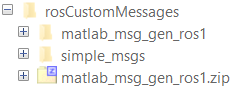
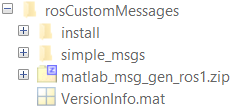
Copy the generated custom messages in the ZIP archive to the target computer and register it using the rosRegisterMessages function.
rosRegisterMessages(genDir)
To use the custom messages, follow these steps:

1. Add the custom message folder to the MATLAB path by executing:

addpath('C:\Work\rosCustomMessages\install\m')
savepath

2. Refresh all message class definitions, which requires clearing the workspace, by executing:

clear classes
rehash toolboxcache

3. Verify that you can use the custom messages.
   Enter "rosmsg list" and ensure that the output contains the generated
   custom message types.
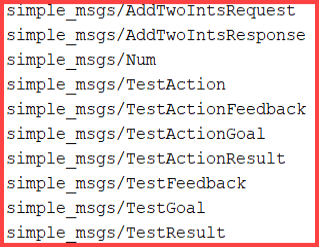
Run rosmsg list on the target computer to view the custom messages for using in the workflow.
Input Arguments
Version History
Introduced in R2022b

