sim3d.Actor
R2026bDescription
Use the sim3d.Actor object to create an empty actor object in
the 3D environment without any visual meshes. After you create a
sim3d.Actor object you can modify aspects of the actor object by setting
property values.
Import 3D files to build an appearance for the actor object.
Define actor appearance using 3D graphic primitive shapes or mesh data.
Create hierarchical structure through defining parent-child relationships.
Support 3D transformations in different coordinate systems.
Enable physics simulation of the Unreal Engine®.
Enable object interaction events, such as hit event, overlap event, and click event.
Creation
Description
actor = sim3d.Actor()
actor = sim3d.Actor(Name=Value)Translation to [3 4
3].
Name-Value Arguments
Specify optional pairs of arguments as
Name1=Value1,...,NameN=ValueN, where Name is
the argument name and Value is the corresponding value.
Name-value arguments must appear after other arguments, but the order of the
pairs does not matter.
Example: actor = sim3d.Actor(ActorName='Actor',Translation=[3 4
3],Mobility='Movable',OnHit=@hitcallback) creates a movable empty actor object
with the specified name, position, and custom callback function handle for hit
event.
Name of actor, specified as a character array or string. If you do not specify an actor name,
then the software assigns the actor an autogenerated name. Use
this argument to set the name of the
sim3d.Actor object.
Note
If you specify the same name as an actor that already exists, then the software appends actor name you specify with a unique identifier.
Coordinate system that the actor uses for translation and rotation in the 3D environment, specified as one of these listed values:
Default– Simulink® 3D Animation™ coordinate system. Units are in m and rad.MATLAB– MATLAB® coordinate system. Units are in m and rad.ISO8855– ISO 8855 standard coordinate system. Units are in m and deg.AERO– SAE coordinate system. Units are in m and rad.VRML– X3D ISO standard coordinate system. Units are in m and rad.SAE– SAE coordinate system. Units are in m and rad.
For more details on the different coordinate systems, see Coordinate Systems in Simulink 3D Animation.
Data Types: string
Relative translation
(x,y,z) of the actor object to its
parent actor, specified as a real 1-by-3 vector, in m. Use Translation to
change the position of the sim3d.Actor object in the 3D environment along the
X, Y, and Z axes of the
coordinate system. When you add an actor to the 3D environment, the default parent actor is the
Scene Origin at (0,0,0).
Example: Translation=[3 4 3]
Data Types: double
Relative rotation (roll,
pitch, yaw) of the actor object to its parent actor,
specified as a real 1-by-3 vector. When you add an actor to the 3D environment, by default the
actor follows the Simulink
3D Animation coordinate system. The rotation order is about X-axis
(roll), then about Y-axis
(pitch), then about Z-axis (yaw).
When you update any of the three rotation values and leave others unchanged, the software
reapplies all three rotations in the same order. The CoordinateSystem value
specifies how Rotation is applied and the units used for rotation. For more
details on the different coordinate systems, see Coordinate Systems in Simulink 3D Animation.
Example: Rotation=[0 pi/2 pi/4]
Data Types: double
Relative scale in x, y
and z coordinates of the actor object to its parent actor, specified as a
real 1-by-3 vector. Use Scale to resize the sim3d.Actor
object in the 3D environment along the X, Y, and
Z axes.
Example: Scale=[2 2 2]
Data Types: double
Type of actor mobility to respond to physics, move the actor during simulation, or both, specified as one of these options.
'Static'– Actors do not move or update during simulation, and the software uses precomputed lighting.'Stationary'– Actors do not move or update during simulation, and the software uses dynamic lighting such as casting shadows.'Movable'– Actors can move or update during simulation, and the software uses dynamic lighting.
When Mobility is 'Static', only the
Material Attributes are run-time
configurable. When you set Mobility to
'Movable', all the actor properties become run-time
configurable, allowing for programmatic interaction. For more details on
programmatic interaction, see Programmatic Interaction.
Example: Mobility='Movable'
Data Types: char
Semantic segmentation map of object class identifiers, specified as real positive scalar. For a complete list of actor IDs and their corresponding object descriptions, see Labels.
Custom hit event callback function handle, specified as the handle to the
user-defined function such as @hitcallback. Use the function to
pass the actor handle as the input argument to access sim3d.Actor
properties during hit event.
Example: Onhit=@hitcallback
Custom begin overlap event callback function handle, specified as the handle to
the user-defined function such as @beginoverlapcallback. Use
the function to pass the actor handle as the input argument to access
sim3d.Actor properties during begin overlap event.
Example: OnBeginOverlap=@beginoverlapcallback
Custom end overlap event callback function handle, specified as the handle to
the user-defined function such as @endoverlapcallback. Use the
function to pass the actor handle as the input argument to access
sim3d.Actor properties during end overlap event.
Example: OnEndOverlap=@endoverlapcallback
Custom click event callback function handle, specified as the handle to the
user-defined function such as @clickcallback. Use the function
to pass the actor handle as the input argument to access sim3d.Actor
properties during click event.
Example: OnClick=@clickcallback
Output Arguments
Actor object, returned as a sim3d.Actor object. A unique
identifier and unique name is assigned to the actor. You can change the actor name,
but the unique identifier is associated with the actor until the actor is deleted. The
3D environment is composed of a hierarchical structure of actors.
Properties
All properties are run-time configurable and can also be used for programmatic interaction
during simulation when the Mobility argument
is set to 'sim3d.utils.MobilityTypes.Movable'.
Base Attributes
Structure to hold actor data, specified as a structure. You can update and maintain this data and use it to update the fields of the structure during simulation or in the setup method.
Parent of actor, specified as a handle to the parent actor object. After you add an actor to
the sim3d.World object, the default parent actor is the
Scene Origin at (0,0,0). Use this property to
set any actor in the 3D environment as the parent actor of a
sim3d.Actor object.
This property is read-only.
Children of actor, specified as a structure.
Each field of the structure contains a handle to
the child of a sim3d.Actor
object.
Parent world, specified as a handle to the parent sim3d.World
object. You can use this property only if the sim3d.Actor object is
added to the parent sim3d.World object.
Coordinate system that the actor uses for translation and rotation in the 3D environment, specified as one of these listed values:
Default– Simulink 3D Animation coordinate system. Units are in m and rad.MATLAB– MATLAB coordinate system. Units are in m and rad.ISO8855– ISO 8855 standard coordinate system. Units are in m and deg.AERO– SAE coordinate system. Units are in m and rad.VRML– X3D ISO standard coordinate system. Units are in m and rad.SAE– SAE coordinate system. Units are in m and rad.
For more details on the different coordinate systems, see Coordinate Systems in Simulink 3D Animation.
Data Types: string
Relative translation
(x,y,z) of the actor object to its
parent actor, specified as a real 1-by-3 vector, in m. Use Translation to
change the position of the sim3d.Actor object in the 3D environment along the
X, Y, and Z axes of the
coordinate system. When you add an actor to the 3D environment, the default parent actor is the
Scene Origin at (0,0,0).
Example: actor.Translation = [1 2 1]
Relative rotation (roll,
pitch, yaw) of the actor object to its parent actor,
specified as a real 1-by-3 vector. When you add an actor to the 3D environment, by default the
actor follows the Simulink
3D Animation coordinate system. The rotation order is about X-axis
(roll), then about Y-axis
(pitch), then about Z-axis (yaw).
When you update any of the three rotation values and leave others unchanged, the software
reapplies all three rotations in the same order. The CoordinateSystem value
specifies how Rotation is applied and the units used for rotation. For more
details on the different coordinate systems, see Coordinate Systems in Simulink 3D Animation.
Example: actor.Rotation = [pi/4 pi/8 pi/2]
Relative scale in x, y
and z coordinates of the actor object to its parent actor, specified as a
real 1-by-3 vector. Use Scale to resize the sim3d.Actor
object in the 3D environment along the X, Y, and
Z axes.
Example: actor.Scale = [1 2 1]
Type of actor mobility to respond to physics, move the actor during simulation, or both, specified as one of these options.
'Static'– Actors do not move or update during simulation, and the software uses precomputed lighting.'Stationary'– Actors do not move or update during simulation, and the software uses dynamic lighting such as casting shadows.'Movable'– Actors can move or update during simulation, and the software uses dynamic lighting.
When Mobility is 'Static', only the Material Attributes are run-time
configurable. When you set Mobility to
'Movable', all the actor properties become run-time configurable,
allowing for programmatic interaction. For more details on programmatic interaction,
see Programmatic Interaction.
Example: actor.Mobility = 'Movable'
Data Types: char
Mesh Attributes
Vertices of mesh geometry, specified as an N-by-3 matrix. This matrix includes the coordinates of all vertex positions to be used for the mesh geometry. Each vertex has a vertex ID equal to its row number in the matrix. N specifies the number of vertices.
Example: actor.Vertices = [-1 -1 0; 1 -1 0; 1 1 0; -1 1 0; -1 -1 0; 1 -1
0;1 1 0;-1 1 0]
Data Types: double
Vertices of each triangular face, specified as an M-by-3 matrix. This matrix defines how each triangle of the mesh is drawn. The matrix specifies the vertex IDs that define each triangular face of the mesh. M is the number of triangular faces in the mesh.
Example: actor.Faces = [0 3 2; 0 2 1; 4 6 7; 4 5
6]
Data Types: double
Normal vectors of each vertex, specified as an N-by-3 matrix.
Each row of the matrix specifies the normal vector for a vertex. This matrix must be
the same size as Vertices.
Example: actor.Normals = [0 0 1; 0 0 1; 0 0 1; 0 0 1; 0 0 -1; 0 0 -1; 0 0
-1; 0 0 -1]
Data Types: double
Texture coordinates for each vertex, specified as an N-by-2
matrix. This matrix defines which point on the texture file maps to each vertices.
This argument is optional and, if specified, must be the same length as
Vertices.
Example: actor.TextureCoordinates = [0 0; 0 1; 1 1; 1 0; 0 0; 0 1; 1 1; 1
0]
Vertex colors, specified as an N-by-3 matrix. This matrix
specifies the color value of each vertex in [R G B] form. This
matrix must be the same length as Vertices.
Note
To display VertexColors along with the actor base color,
set the VertexBlend property to a value greater than 0. If
VertexBlend is 1, then actor displays only the
VertexColors.
Example: actor.VertexColors = [1 0 0; 0 1 0; 0 0 1; 1 0 1; 1 1 0; 0 1 1; 1
1 0; 0 1 0]
Material Attributes
Base color of actor, specified as a real 1-by-3 vector. Color
consists of a vector of color RGB components [red green blue].
Values greater than 1 cause glowing and can be used for various
indicators. If the sim3d.Actor
object has a texture, the TextureMapping.Blend coefficient can be
used to control how it blends with the base color.
Example: actor.Color = [0.3 0.27 0.9]
Transparency of actor, specified as a real positive number in the range (0,1), where 0 indicates an opaque object and 1 indicates a completely transparent object.
Example: actor.Transparency = 0.8
Data Types: double
Shininess of actor, specified as a real positive number in the range (0,1), where 0 indicates a nonshiny object and 1 indicates a completely shiny object.
Example: actor.Shininess = 0.3
Data Types: double
Metallic look of actor, specified as a real positive number in the range (0,1), where 0 indicates a plastic surface and 1 indicates a metallic surface.
Example: actor.Metallic = 0.1
Data Types: double
Flat shading factor of actor, specified as a real positive number in the range (0,1), where 0 indicates a smooth shading and 1 indicates a faceted shading. Smooth shading interpolates the lighting across the surface of 3D models, made of numerous polygon meshes, to make them appear smoother. Faceted shading calculates light for each polygon individually, emphasizing the model's flat surfaces and sharp edges by applying light and shadow separately to each polygon.
Example: actor.Flat = 0.7
Data Types: double
Actor shadows, specified as 0 (false) if the
actor does not cast shadows or 1 (true) if it
does.
Color blending coefficient of vertices, specified as a real positive number in the range (0,1), where 0 indicates to display only the base color and 1 indicates to display only the vertex color. This value indicates how much of the base color blends with the specified vertex color.
Example: actor.VertexBlend = 0.5
Texture transformations applied to actor texture, specified as a real positive
vector. Use TextureTransform to define texture position, velocity,
scale, and angle.
Transformation Properties
| Property | Detail | Value | Value Example |
|---|---|---|---|
| Position | Use this property to set the position of the texture. You can use
|
| actor.TextureTransform.Position = [2 3] |
| Velocity | Use this property to set the velocity of the texture movement. velocity is expressed as a change of U and V coordinates per second of simulation time. The animated surface has no effect on physical interactions. |
| actor.TextureTransform.Velocity = [2 3] |
| Scale | Use this property to set the relative texture scale. If the texture is smaller than the surface to be covered, the scale repeats automatically in all directions. Negative values can be used to flip the texture in corresponding coordinate. |
| actor.TextureTransform.Scale = [2 2] |
Texture mapping parameters applied to actor texture, specified as a real positive
vector. Use TextureMapping to define texture blend, displacement,
bump factor, and roughness.
Mapping Properties
| Property | Detail | Value | Value Example |
|---|---|---|---|
| Blend | Use this property to set the blend ratio of the texture. You can use To create an effect of glowing texture, use a black base color ([0 0 0]) and blend values greater than 1. You can set the value independently for each color channel ([red green blue]). |
| actor.TextureMapping.Blend = [1 1 0.5] |
| Displacement | Use this property to set the displacement of the texture. You can use You can set the value independently for each color channel ([red green blue]) and its range is unlimited. |
| actor.TextureMapping.Displacement = [1 2 5] |
| Bumps | Use this property to set the bump factor of the texture. You can use You can set the value independently for each color channel ([red green blue]) and its range is unlimited. |
| actor.TextureMapping.Bumps = [10 10 0.5] |
| Roughness | Use this property to set the roughness factor of the texture. You can use You can set the value independently for each color channel ([red green blue]) and its range is unlimited. |
| actor.TextureMapping.Roughness = [1 1 0.5] |
Source file for texture, specified as a character array. The supported file types are JPEG, PNG, and BMP. The file path should be absolute.
Note
For BMP files, only 8-bit files are supported.
Example: actor.Texture = fullfile(pwd,
"file.jpg")
Two-sided visibility of actor surface, specified as 0
(false) if the actor is visible only from the outer side or
1 (true) if the actor is visible from both the
inner and outer sides. When this property is false, actor
performance improves, as the polygons facing away from the camera viewpoint are not
rendered.
Example: actor.TwoSided = 1
Surface reflectivity, specified as a real positive number in the range (0,1). Use this property to control how shiny the surface of the actor appears.
Example: actor.Specular = 0.7
Data Types: double
Physical Attributes
Linear velocity of actor, specified as a real 1-by-3 vector, in m per second.
Example: actor.LinearVelocity = [1 1 1]
Dependencies
Mobility should be set to
'sim3d.utils.MobilityTypes.Movable' for velocities to work.
Otherwise the actor will not move, and you will see a warning.
Angular velocity of actor, specified as a real 1-by-3 vector, in rad per second.
Example: actor.AngularVelocity = [2 2 2]
Dependencies
Mobility should be set to
sim3d.utils.MobilityTypes.Movable for velocities to work.
Otherwise the actor will not move, and you will see a warning.
Mass of actor, specified as a real positive scalar, in kg. The default value
0 specifies the mass of an empty actor. When you assign a shape
to the actor, the Unreal Engine determines the volume of the actor through its mesh geometry and
calculates the mass based on its volume and density of the material assigned to the
actor. The Unreal Engine sets a default density at 1000 kg per cubic meter.
Example: actor.Mass = 12
Center of mass of sim3d.Actor
object, specified as a real positive vector. Use this property to shift the center of
gravity from the origin of the local coordinate system.
Example: actor.CenterOfMass = [1 0 1]
Application of gravity to actor, specified as 0
(false) if no gravity is applied or 1
(true) if gravity is applied.
Example: actor.Gravity = false
Dependencies
This property works when:
Physicsproperty is set to1ortrue.PreciseContactsproperty is set to0orfalse.
Mobilityshould be set tosim3d.utils.MobilityTypes.Movablefor the actor to experience the effects of gravity. Otherwise the actor will not move, and you will see a warning.
Reaction of actor to physical forces such as gravity and collision, specified as
0 (false) or 1
(true).
If Physics is enabled, the actor moves independently of its
parent actor object but together with its children, unless the children also have
Physics enabled.
Example: actor.Physics = true
Dependencies
This property works when PreciseContacts property is set to
0 or false.
Object collision, specified as 0 (false) for
no collision or 1 (true) if objects will
collide.
Example: actor.Collisions = false
Precise contacts during collisions, specified as 0
(false) or 1 (true).
Setting this value to true allows the Unreal Engine to use a collision box that follows the actor mesh precisely. This
setting allows the software to detect collisions accurately.
Example: actor.PreciseContacts = true
Dependencies
Setting
PreciseContactsproperty totruefor an actor disables thePhysicsandGravityproperties.This property is not run-time configurable.
Stationary translational motion, specified as either 0
(false) or 1 (true). If
this property is enabled, the actor is fixed in place. If the actor has defined a
nonzero linear velocity, it interacts with other objects as if it were moving itself.
You can use this property to model belt conveyors.
Example: actor.LocationLocked = true
Dependencies
Physics should be set to false.
Stationary rotational motion, specified as either 0
(false) or 1 (true). If
this property is enabled, the sim3d.Actor
object is fixed in place. If the actor has defined a nonzero angular velocity, it
interacts with other objects as if it were moving itself. You can use this property to
model circular conveyors (carousels).
Example: actor.RotationLocked = true
Dependencies
Physics should be set to false.
Note
RotationLocked is not compatible with Unreal Engine 5.3 and 5.4.
Option to hide the actor from the 3D environment scene, specified as
0 (false) if the actor is visible in the scene
or 1 (true) if the actor is hidden in the
scene.
Example: actor.Hidden = 1
Dynamic friction, dimensionless, specified as a real positive number in the range (0,1). This property indicates the ease with which two actors can slide over each other. The value can only change in discrete steps of 0.1. When two actors slide over each other, the friction is the average value of both actors.
Example: actor.Friction = 0.4
Coefficient of restitution, dimensionless, specified as a real positive number in the range (0,1). This property indicates how bouncy the collision is between two actors. The value can only change in discrete steps of 0.1. When two actors collide with each other, the coefficient of restitution is the average value of both actors.
Example: actor.Restitution = 0.5
Force applied to actor, specified as real a 1-by-3 vector, in N. The acceleration
of the actor depends on the Mass property of the actor and the
size of the simulation step specified by sampleTime in run.
Example: actor.Force = [0 5 0]
Dependencies
Physics should be set to true.
Torque applied to actor, specified as a real 1-by-3 vector, in Nm. The angular
acceleration of the actor depends on the Mass property of the
actor and the size of the simulation step specified by sampleTime
in run.
Example: actor.Torque = [0 pi/2 0]
Dependencies
Physics should be set to true.
Level of linear movement resistance, specified as a real positive scalar. Use this property to control how much the actor can resist linear movement.
Example: actor.LinearDamping = 3
Dependencies
Physics should be set to true.
Data Types: double
Level of angular movement resistance, specified as a real positive scalar. Use this property to control how much the actor can resist angular movement. You can also use this property to limit the angular movement of actors on conveyor belts.
Example: actor.AngularDamping = 3
Dependencies
Physics should be set to true.
Data Types: double
Event Attributes
Option to report hit event, specified as 0
(false) or 1 (true). This
table provides the required HitEventEnabled and
Collisions property settings to report hit
events.
| Hit Event Description | Actor HitEventEnabled Property | Actor Collisions Property |
|---|---|---|
Actor 1 collides with Actor 2 | Actor 1 – Actor 2 –
| Actor 1 – Actor 2 –
|
Actor 2 collides with Actor 1 | Actor 1 – Actor 2 – | Actor 1 – Actor 2 –
|
Example: actor.HitEventEnabled = true
Option to report overlap event, specified as 0
(false) or 1 (true). This
table provides the required OverlapEventEnabled and
Collisions property settings to report begin overlap and end
overlap events.
| Overlap Event Description | Actor OverlapEventEnabled Property | Actor Collisions Property |
|---|---|---|
Actor 1 overlaps Actor 2 | Actor 1 – Actor 2 –
| Actor 1 – Actor 1 – Actor 1 –
|
Actor 2 overlaps Actor 1 | Actor 2 – Actor 1 –
| Actor 2 – Actor 2 – Actor 2 –
|
Additionally, when the PreciseContacts property is enabled,
check for these settings to report the overlap event.
| Overlap Event Description | Actor PreciseContacts Property |
|---|---|
Actor 1 overlaps Actor 2 | Actor 1 – Actor 1 – |
Actor 2 overlaps Actor 1 | Actor 2 – Actor 2 – |
Example: actor.OverlapEventEnabled = true
This property is read-only.
Hit event for sim3d.Actor
object, specified as 0 (false) or
1 (true).
This property is read-only.
Hit sim3d.Actor
object identifier, specified as a real positive integer.
This property is read-only.
Identifier of actor that collides with the sim3d.Actor
object, specified as a real positive integer.
This property is read-only.
Hit event location in the 3D environment, specified as a real 1-by-3 vector.
Data Types: double
This property is read-only.
Name of actor that collides with the sim3d.Actor
object, specified as a character array or string.
This property is read-only.
Overlap begin event for sim3d.Actor
object, specified as 0 (false) or
1 (true).
This property is read-only.
Identifier of the overlapped sim3d.Actor
object, specified as a real positive integer.
This property is read-only.
Identifier of the actor that overlaps with the sim3d.Actor
object, specified as a real positive integer.
This property is read-only.
Name of actor that overlaps with the sim3d.Actor
object, specified as a character array or string.
This property is read-only.
Overlap end event for sim3d.Actor
object, specified as 0 (false) or
1 (true).
This property is read-only.
Identifier of the sim3d.Actor
object that is ending overlap, specified as a real positive integer.
This property is read-only.
Identifier of the actor that ends overlap with the sim3d.Actor
object, specified as a real positive integer.
This property is read-only.
Name of actor that ends overlap with the sim3d.Actor
object, specified as a character array or string.
This property is read-only.
Click event for sim3d.Actor
object, specified as 0 (false) or
1 (true).
Note
To report a click event, click an actor in the 3D environment.
This property is read-only.
Identifier of the sim3d.Actor
object that is clicked, specified as a real positive integer.
This property is read-only.
Cartesian coordinates of the click event location in the 3D environment, specified as a real 1-by-3 vector.
Data Types: double
This property is read-only.
Name of clicked actor, specified as a character array or string.
Object Functions
copy | Copy all properties from another actor |
findBy | Find all actors that match specified criteria |
propagate | Propagate value of selected property to actor and its children |
gather | Return values of selected property from all objects in selected branch |
createMesh | Create new mesh with specified values |
addMesh | Append mesh on top of current mesh |
load | Load or import 3D file |
save | Save actor and children to a MAT file |
createShape | Create geometry for basic primitives |
Examples
Create a box actor in the 3D environment.
Create a world using the sim3d.World
object.
world = sim3d.World();
Create an actor object.
actor = sim3d.Actor();
This creates an empty actor object without an appearance for the actor.
Use the createShape
function to build a box shape for the actor. Use the Color
property to set the color of the box actor to red.
createShape(actor,'box');
actor.Color = [1 0 0];
Add actor to the world.
add(world,actor);
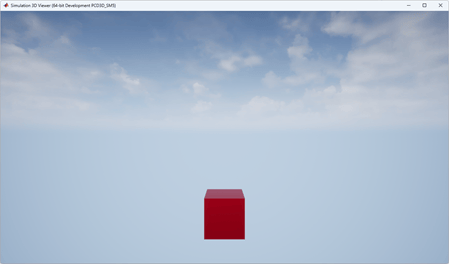
Run the simulation to view the Simulation 3D Viewer window displaying the red box actor in the 3D environment.
sampletime = 0.01;
stoptime = 2;
run(world,sampletime,stoptime)
Version History
Introduced in R2022bSet the Mobility argument or property of
sim3d.Actor object using one of these options.
'Static''Stationary''Movable'
There are no plans to remove support for existing references to
sim3d.utilis.MobilityTypes.Movable and
sim3d.utilis.MobilityTypes.Static as Mobility
values.
The improved communication interface to Unreal Engine applies incremental updates to transformations such as translation, rotation, and scale. Previously, only the last transformation increment was applied.
The sim3d.Actor object has these material and physical properties.
Specular: Set how shiny the actor surface appears.LinearDamping: Set the actor resistance to linear movement.AngularDamping: Set the actor resistance to angular movement.
The Events property is removed. Instead, use the
sim3d.Actor object properties HitEventEnabled and
OverlapEventEnabled to report hit event and overlap events,
respectively in the Unreal Engine simulation 3D environment.
The sim3d.Actor object has a base property,
CoordinateSystem, to represent actor orientation.
The sim3d.Actor object has these new physical properties:
Hiddenhides actor visibility.Forceapplies force to the actor.Torqueapplies torque to the actor.
The sim3d.Actor object has a material property,
TwoSided, to render two sides of an actor surface.
Use sim3d.Actor object properties to communicate events in the
Unreal Engine simulation 3D environment, including when:
You click an actor.
An actor collides or overlaps with another actor.
You initialize an event callback for an actor.
Use the PreciseContacts property to allow Unreal Engine to precisely render collisions.
The sim3d.Actor object has these physical properties:
FrictionRestitution
See Also
sim3d.World | sim3d.sensors.IdealCamera | Simulation 3D Actor
MATLAB Command
You clicked a link that corresponds to this MATLAB command:
Run the command by entering it in the MATLAB Command Window. Web browsers do not support MATLAB commands.


Select a Web Site
Choose a web site to get translated content where available and see local events and offers. Based on your location, we recommend that you select: .
You can also select a web site from the following list
How to Get Best Site Performance
Select the China site (in Chinese or English) for best site performance. Other MathWorks country sites are not optimized for visits from your location.
Americas
- América Latina (Español)
- Canada (English)
- United States (English)
Europe
- Belgium (English)
- Denmark (English)
- Deutschland (Deutsch)
- España (Español)
- Finland (English)
- France (Français)
- Ireland (English)
- Italia (Italiano)
- Luxembourg (English)
- Netherlands (English)
- Norway (English)
- Österreich (Deutsch)
- Portugal (English)
- Sweden (English)
- Switzerland
- United Kingdom (English)