Wheels and Tires
R2026bUse the model and wheel blocks in the vehicle model driveline subsystem. The blocks use the axle velocity and torque, tire parameters, and normal forces to calculate the wheel dynamics and forces acting on the vehicle axle. For the blocks, you can specify a drum, disc, or mapped brake.
Install the Extended Tire Features for Vehicle Dynamics Blockset™ support package to access tireData and
tireModel classes and methods. These tools allow you to import,
plot, and process tire data, compute and plot tire model responses, create and fit
tire models to tire measurement data, and export parameters to wheel blocks for
simulation. See Install Support Package.
Apps
| Tire Manager | Import, edit, plot, and fit tire data (Since R2026a) |
Functions
Blocks
 | Combined Slip Wheel CPI | Combined slip wheel compliant with CPI Tydex standard |
 | Combined Slip Wheel STI | Combined slip wheel compliant with STI Tydex standard |
 | Combined Slip Wheel 2DOF | Combined slip 2DOF wheel with disc, drum, or mapped brake |
 | Dugoff Wheel 2DOF | Dugoff Wheel 2DOF wheel with disc, drum, or mapped brake (Since R2023a) |
 | Fiala Wheel 2DOF | Fiala wheel 2DOF wheel with disc, drum, or mapped brake |
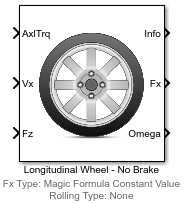 | Longitudinal Wheel | Longitudinal wheel with disc, drum, or mapped brake |
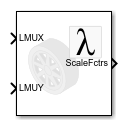 | Scale Factors | Create Magic Formula tire model scale factors (Since R2026b) |
 | Rotational Brake | Rotational brake with disc, drum, mapped, or external torque modes (Since R2024b) |
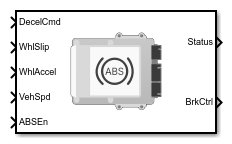 | Anti-Lock Brake System | Anti-lock brake system (ABS) controller (Since R2026b) |
Topics
- Coordinate Systems in Vehicle Dynamics Blockset
Understand coordinate systems used for vehicle dynamics calculations and for actor transformations in the 3D environment.
- Get Started with the Extended Tire Features for Vehicle Dynamics Blockset
Import, plot and fit tire data for use with Vehicle Dynamics Blockset tire models.
- Import Tire Measurement Data for Analysis
Import tire measurement data for Analysis in the Tire Manager app.
- Convert Tire Model for Use in Supported Simulink Block
Import and convert a tire model to use in a supported Simulink® wheel block using the Tire Manager app.
- Fit a Tire Model to Tire Measurement Data
Fit a tire model to tire measurement data using the Tire Manager app.
Featured Examples
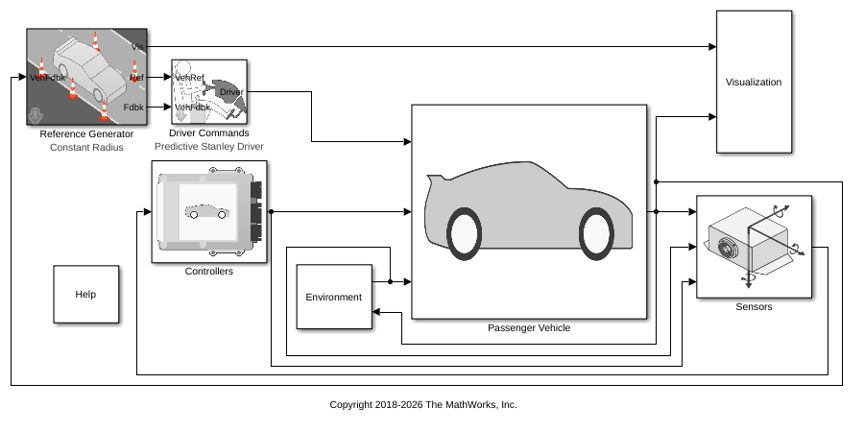
Constant Radius Reference Application
Use this reference application in handling studies and chassis controls development to characterize vehicle steady state steering and lateral dynamics.
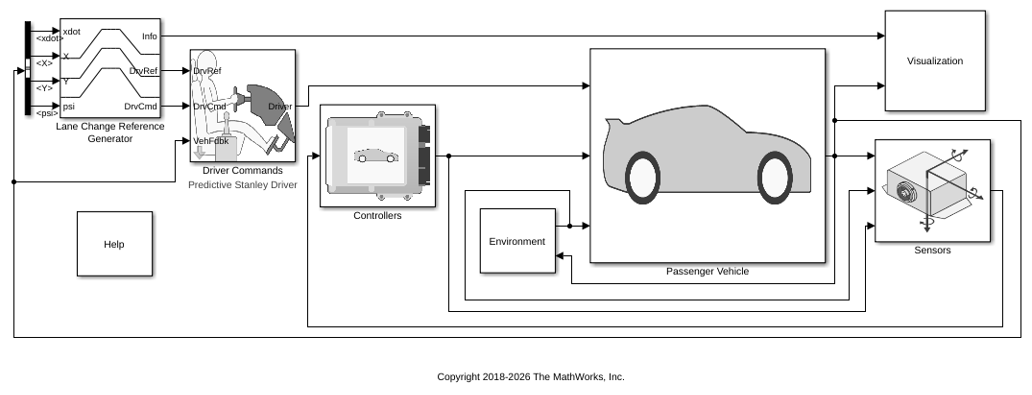
Double Lane Change Reference Application
Simulate a full vehicle dynamics model undergoing a double lane change maneuver standard ISO 3888-2. Use for vehicle dynamics ride and handling analysis and chassis controls development, including yaw stability and lateral acceleration limits.
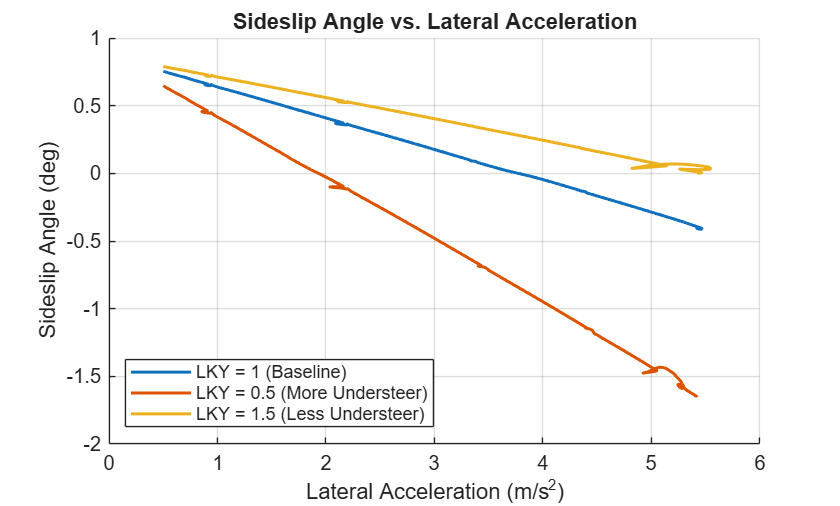
Analyze Tire Stiffness Effects on Handling
Analyze the effect of tire lateral stiffness scale factors on vehicle handling using Vehicle Dynamics Blockset(TM) and the scale factors block.

