slreq.dngConfigure
R2026bConfigure IBM DOORS Next session in MATLAB
Description
slreq.dngConfigure establishes a connection between your
MATLAB® session and an IBM®
DOORS® Next server. The function opens the DNG Server Login Configuration dialog box,
which prompts you to enter your IBM
DOORS Next server URL, port number information, and login credentials, and to select
a project configuration.
slreq.dngConfigure(
establishes a connection between your MATLAB session and an IBM
DOORS Next server and sets the project to projectName,configName,browserTest,passwordArg)projectName, sets the
configuration context to configName, tests the connection from the
system browser to MATLAB when
browserTest is set to true, and uses the password
or custom authentication callback function specified by passwordArg.
For more information about custom authentication callback functions, see setCustomLoginProvider.
Before you can establish the connection, you must set the server address, requirements
management service root, and username by specifying these preferences using the rmipref function:
Note
If you test the connection from the system browser to MATLAB, the software opens a dialog box that displays the result of the connection test.
Examples
This example shows how to establish a connection between MATLAB and IBM DOORS Next.
Enter slreq.dngConfigure at the MATLAB command prompt.
slreq.dngConfigure;
Verifying server address...
Verifying server login username...
When prompted, enter your DOORS Next password
Select Project/Stream/Changeset that you will be working with
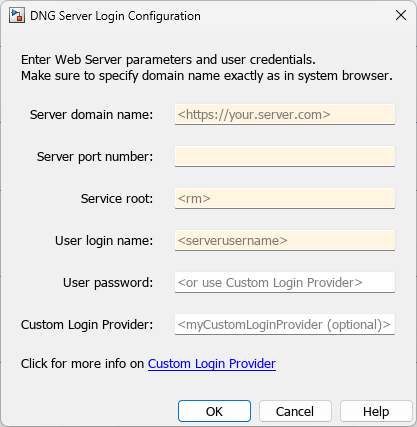
In the DNG Server Login Configuration dialog box, provide the DOORS Next server address, port number, and service root. In the Server Login Name and Server Login Password dialog boxes, enter your login credentials.
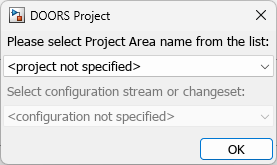
In the DOORS Project dialog box, select the project to work with and, if applicable,
select the configuration context. Select configuration stream or
changeset lists the recently used configurations. If your configuration
context does not appear, select <more> to query the full list from
the server.
Specify the server address, requirements management service root, and
the username using the rmipref function.
Specify the server address, requirements management service root, and the username.
rmipref(OslcServerAddress="https://localhost:9443");
rmipref(OslcServerRMRoot="rm");
rmipref(OslcServerUser="jdoe");
Establish the connection by specifying the project, configuration context, whether
to test the connection from the system browser to MATLAB, and the custom authentication callback
function myPasswordHelperCallback. For more information about custom
authentication callback functions, see setCustomLoginProvider..
slreq.dngConfigure("My Project","My Project Initial Stream", ...
    true,"myPasswordHelperCallback")
Performing default system browser message test.
	If browser warns about a missing certificate for 127.0.0.1,
	please allow the connection or add exemption for 127.0.0.1.
	https://127.0.0.1:31515/matlab/oslc/inboundTest
Store your authentication credentials as securely stored credentials
by using setSecret.
setSecret("dngUsername")
setSecret("dngPassword")
Specify the server address and requirements management service root. Retrieve the
username by using getSecret.
rmipref(OslcServerAddress="https://localhost:9443");
rmipref(OslcServerRMRoot="rm");
rmipref(OslcServerUser=getSecret("dngUsername"));
Establish the connection by specifying the project, configuration context, and
password. Retrieve the password by using getSecret.
slreq.dngConfigure("My Project","My Project Initial Stream", ...
    false,getSecret("dngPassword"))
Input Arguments
Tips
If the function returns an error and indicates that the MATLAB Connector server is running on a non-default port, close all open instances of MATLAB, open one instance, and use the
slreq.dngConfigurefunction. If the MATLAB Connector Test dialog box does not open, check for security issues in your browser. If the browser indicates that the connection is unsecured or not private, and you trust the connection, click Advanced > Proceed to localhost (unsafe) to complete the connection.To create direct links to requirements in IBM DOORS Next, leave the test connection browser window open, because this instance of the web browser is authorized to communicate with MATLAB. Use this web browser to select requirements in your IBM DOORS Next project and create direct links. You can re-open the test connection browser window by copying and pasting this address in the browser address bar:
https://localhost:31515/matlab/oslc/inboundTest.If your network requires advanced authentication that the default authentication process does not support, you can use
rmiprefwith theLoginProvidername-value argument to register a custom authentication callback function before usingslreq.dngConfigure.You can programmatically authenticate your session by using
setSecretto securely store your credentials, then retrieve the credentials by usinggetSecret. Pass the username as theOslcServerUserargument of thermipreffunction and the password as thepasswordArginput ofslreq.dngConfigure. For more information about MATLAB secrets, see Keep Sensitive Information Out of Code.

