Create ROI Shapes
A region of interest (ROI) is a portion of an image that you want to annotate, filter or operate on in some way. You can create ROI objects that represent ROIs of various shapes, including circles, ellipses, polygons, lines, polylines, rectangles, and hand-drawn shapes. You can display ROI objects to annotate an image, or convert the ROI object to a binary mask and perform additional processing operations.

Image Processing Toolbox™ provides two systems for creating, displaying, and interacting with ROI
objects on images: viewer-based ROIs (since R2026a), which are
designed for high-performance interaction with images and volumes displayed using
imageshow and volshow, respectively, and
axes-based ROIs, which integrate with MATLAB Graphics Objects and imshow displays.
Both options allow you to draw shapes interactively, create masks, and programmatically
query or modify shapes, but they differ in performance, some supported features, and
intended use cases.
| Viewer-based ROIs | Axes-based ROIs |
|---|---|
Use viewer-based ROI objects when you need:
| Use axes-based ROI objects when you need:
|
Approaches to Create Viewer-Based ROIs
You can create viewer-based ROI objects using these approaches.
Interactively from the viewer toolbar. In a
Viewerobject toolbar, select the draw annotations icon
, then select a shape to draw. Click
and drag to draw the ROI. To export the ROI as an object, right-click
the shape and select Export annotation to
workspace.Using the
uidrawfunction, which enables you to interactively draw or programmatically specify an ROI in a single command. Use theuidrawfunction to create shapes that are not available in the viewer toolbar, or if you want to set the label or color before you draw the shape.Programmatically using an object creation function, such as
images.ui.graphics.roi.Circle. To display the ROI, add the object to theAnnotationsproperty of aViewerobject. Use this approach to more flexibly control the appearance and behavior of an ROI. For example, you can specify the face transparency or interactivity of ROIs within apps as you build them.
The table summarizes the options for creating each viewer-based ROI object.
| Description | Viewer Toolbar Support | ROI Creation Convenience Function Syntax | Object Creation Function |
|---|---|---|---|
Line ROI that consists of a single line segment
| 2-D and 3-D | uidraw(viewer,"line") | images.ui.graphics.roi.Line |
Point ROI
| 2-D and 3-D | uidraw(viewer,"point") | images.ui.graphics.roi.Point |
Rectangle ROI
| 2-D only | uidraw(viewer,"rectangle") | images.ui.graphics.roi.Rectangle |
Circle ROI
| 2-D only | uidraw(viewer,"circle") | images.ui.graphics.roi.Circle |
Polygon ROI that consists of a closed set of line segments
| 2-D only | uidraw(viewer,"polygon") | images.ui.graphics.roi.Polygon |
Angle ROI
| 2-D only | uidraw(viewer,"angle") | images.ui.graphics.roi.Angle |
Polyline ROI that consists of an open set of line segments
| None | uidraw(viewer,"polyline") | images.ui.graphics.roi.Polyline |
Freehand ROI that follows the path of the mouse
| None | uidraw(viewer,"freehand") | images.ui.graphics.roi.Freehand |
Ellipse ROI
| None | uidraw(viewer,"ellipse") | images.ui.graphics.roi.Ellipse |
Create Viewer-Based ROIs
This example shows how to create viewer-based ROIs.
Create ROI from Viewer Toolbar
Read and display an image in a Viewer object.
Im = imageshow("pears.png");
viewer = Im.Parent;From the toolbar in the top-right corner of the viewer, select the draw annotations icon
and then select the circle icon. Click and drag to draw the ROI. To export the ROI as an object, right-click the ROI and select Export annotation to workspace.

Create ROI using uidraw
The uidraw function enables you to interactively draw or programmatically specify ROIs.
Display the image in a new viewer.
Im2 = imageshow("pears.png");
viewer2 = Im2.Parent;Create a circle ROI by using the uidraw function, which enables an interactive drawing mode in the viewer. Click and drag in the viewer to draw the circle.
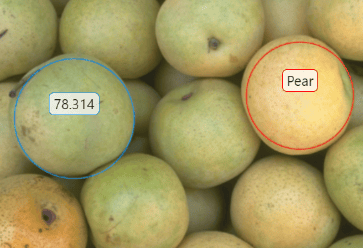
roi = uidraw(viewer2,"circle");To create an ROI fully programmatically, specify the Position argument. For a circle, specify the position as a vector of the form [x y radius]. You can also customize the ROI color and label.
roi2 = uidraw(viewer2,"circle",Position=[450 204 70],Color="r",Label="Pear");

Create ROI Using Object Creation Function
Object creation functions enable you to programmatically create ROIs with more customization options than the uidraw function.
Display the pears image in a new viewer.
Im3 = imageshow("pears.png");
viewer3 = Im3.Parent;Create a circular ROI object. Use the Center and Radius properties to specify the position and size of the circle. To display the ROI, add it to the Annotations property of the Viewer object.
roi3 = images.ui.graphics.roi.Circle(Center=[445 204],Radius=75); viewer3.Annotations = [viewer3.Annotations roi3];

Approaches to Create Axes-Based ROIs
You can create axes-based ROIs using these approaches.
Using a creation convenience function such as
drawcircle, which enables you to interactively draw or programmatically specify an ROI in a single command.Using an object creation function such as
images.roi.Circle. Use this approach when you want to specify the appearance and behavior of the ROI before you specify the shape and position of the ROI. After you create the ROI, use thedrawfunction to interactively draw the ROI on an image. Thedrawfunction also enables you to redraw an existing ROI, preserving the appearance of the ROI.
The table shows the supported ROIs and their respective creation convenience functions.
| Description | ROI Creation Convenience Function | Object Creation Function |
|---|---|---|
AssistedFreehand ROI that snaps to edges of existing objects in the image
| drawassisted | images.roi.AssistedFreehand |
Circle ROI
| drawcircle | images.roi.Circle |
Crosshair ROI that consists of two perpendicular lines
| drawcrosshair | images.roi.Crosshair |
3-D Cuboid ROI
| drawcuboid | images.roi.Cuboid |
Ellipse ROI
| drawellipse | images.roi.Ellipse |
Freehand ROI that follows the path of the mouse
| drawfreehand | images.roi.Freehand |
Line ROI that consists of a single line segment
| drawline | images.roi.Line |
Point ROI
| drawpoint | images.roi.Point |
Polygon ROI that consists of a closed set of line segments
| drawpolygon | images.roi.Polygon |
Polyline ROI that consists of an open set of line segments
| drawpolyline | images.roi.Polyline |
Rectangle ROI
| drawrectangle | images.roi.Rectangle |
Create Axes-Based ROIs
This example shows how to create axes-based ROIs.
Create ROI Using Convenience Function
Creation convenience functions enable you to create axes-based ROIs in a single command. You can use a creation function to interactively draw the ROI over an image, or use name-value arguments to define the ROI and skip drawing.
Read and display an image.
I = imread("pears.png");
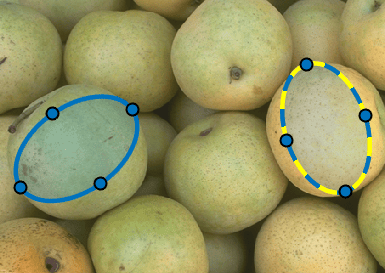
imshow(I)Create an Ellipse object by using the drawellipse function. Customize the appearance of the ROI by specifying the StripeColor name-value argument. The function enables an interactive drawing mode in the image display. Click and drag on the image to draw the ROI.
roi =drawellipse(StripeColor="y");To create an ellipse fully programmatically, specify the size and position using name-value arguments. For an ellipse, specify the Center, the SemiAxes, and the RotationAngle values.
roi2 = drawellipse(Center=[150 225],SemiAxes=[80 50],RotationAngle=35);

Create ROI Using Object Creation Function
Object creation functions enable you to specify the appearance and behavior of the ROI before you draw it or specify its position programmatically.
Display the pears image in a new figure.
imshow(I);
Create an Ellipse object, specifying its appearance but not its size or position.
roi3 = images.roi.Ellipse(Color="c",StripeColor="r");
To draw the ROI on the image, use the draw function. To draw the ROI, click on the image and then drag and release the pointer.
draw(roi3)
To create an ellipse fully programmatically, specify the size and position using name-value arguments. To display the object, you must specify the parent axes as an input argument. Otherwise, the function creates the object but does not display it.
roi4 = images.roi.Ellipse(gca,Center=[90 390],SemiAxes=[80 50],RotationAngle=50);

Using ROIs in Apps Created with App Designer
You can use both viewer-based and axes-based ROIs in apps created with App Designer. Viewer‑based ROIs provide smoother and more responsive interactions than axes‑based ROIs, especially when your app needs to support many ROIs in a single display.
Create Viewer-Based ROIs in Apps
To display viewer-based ROIs in an app, create them in a
Viewer object whose parent is a container component in your
app. For example, you can parent the viewer to a figure, panel, or grid layout.
You specify the code to create the viewer and ROIs using callback
functions.
For example, you can configure an app to display an image and add a circular
ROI within a panel. First, in the Design View of App
Designer, drag and drop a Panel component from the
Component Library onto the canvas. Then, create a
startupFcn callback by right-clicking the app node from
the top of the Component Browser hierarchy and selecting Callbacks > Add StartupFcn callback. App Designer creates the function and places the cursor in the
body of the function in Code View. Specify code to create a
viewer, display the image, and create the ROI. You must specify the panel,
app.Panel as the parent of the viewer, and the viewer as
the parent of the image and the ROI.
function startupFcn(app) viewer = viewer2d(Parent=app.Panel); imageshow("pears.png",Parent=viewer); circleROI = uidraw(viewer,"circle") end
Click Run to save and run the app. The app opens and displays the image. Click and drag to draw the circle ROI on the image.

You can also create a viewer-based ROI by calling its object creation
function, such as images.ui.graphics.roi.Circle. After you
create an ROI, add it to the Annotations property of a
Viewer object whose parent is a container component in your
app.
Create Axes-Based ROIs in Apps
To add axes-based ROIs, parent the ROI object to a UI axes in your app. For
example, in the Design View of App Designer, drag an
Axes from the Component Library
onto the canvas, then follow the steps above to add a
startupFcn callback. Within the callback, specify code to
display the image and create a circular ROI. You must specify the UI axes,
app.UIAxes, as the parent of the image and the
ROI.
function startupFcn(app) imshow("pears.png",Parent=app.UIAxes); c = drawcircle(app.UIAxes); end
Click Run to save and run the app. The app opens and displays the image. Click and drag to draw the circle ROI on the image.

You can also create an ROI using its object creation function, such as
images.roi.Circle. After you create the ROI, call the
draw function to define the shape and position of the ROI and
add it to a UI axes in your app.